How to Save X/Twitter Articles as PDF or Markdown
Download any X (Twitter) article as a PDF or Markdown file, images, headings, links, and quote posts included, using the X Article Export Button tweek.
X Articles are the long-form side of X: headings, embedded images and video, and a limit of about 100,000 characters, which is enough room for a serious essay. People publish investor letters, technical deep dives, and multi-part arguments there. What X doesn't give you is any way to get one back out. There's no download option and no export setting. You can bookmark an article, which files it away inside the same app, or you can select-all and copy, and watch the headings, images, and embedded posts fall off on the way to wherever you paste.
That gap is what the X Article Export Button fills. It adds one button to the article header and does two things: save the article you're reading as a PDF, or save it as a Markdown file. Below is the setup and what comes out the other end, tested on Marc Andreessen's "SpaceX & the Sentient Sun".
The Export Button
Once the tweek is installed, an Export pill appears in the header of every article read view, next to X's Focus mode arrows:

Click it and a dropdown offers the two formats:
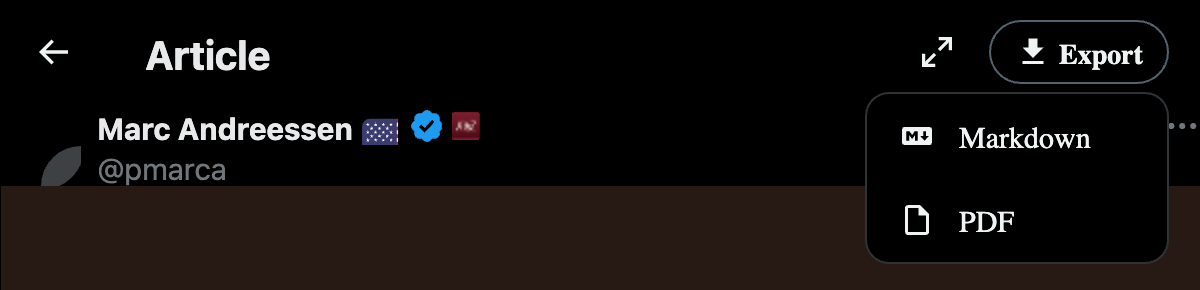
That's the whole interface. The button shows up on x.com and twitter.com, both on article URLs and on the status permalinks where articles actually open when you click one in the timeline. It doesn't appear on ordinary posts or threads; this tweek is for articles.
Setup
- Install the Tweeks extension for Chrome or Firefox.
- Open the X Article Export Button share page. The full source, 2,116 lines, is right there if you want to read what you're installing. Click install.
- Open any X article. The Export button appears in the header within a second or two.
If you don't have an article in front of you, check the Articles tab on a writer's profile; anyone who publishes them has one.
Save an X Article as a PDF
- Open the article and let it finish loading. If it's long, scroll through it once so X loads every image; the exporter can only see what the page has.
- Click Export, then PDF.
- The button shows a loading state while images are fetched and the document is built. An image-heavy article takes a few seconds.
- A PDF named after the article lands in your downloads. Ours came out as
SpaceX_the_Sentient_Sun.pdf.
The result is a clean A4 document, not a screenshot of the page: title at the top, author with @handle, the source URL and export date, then the article.
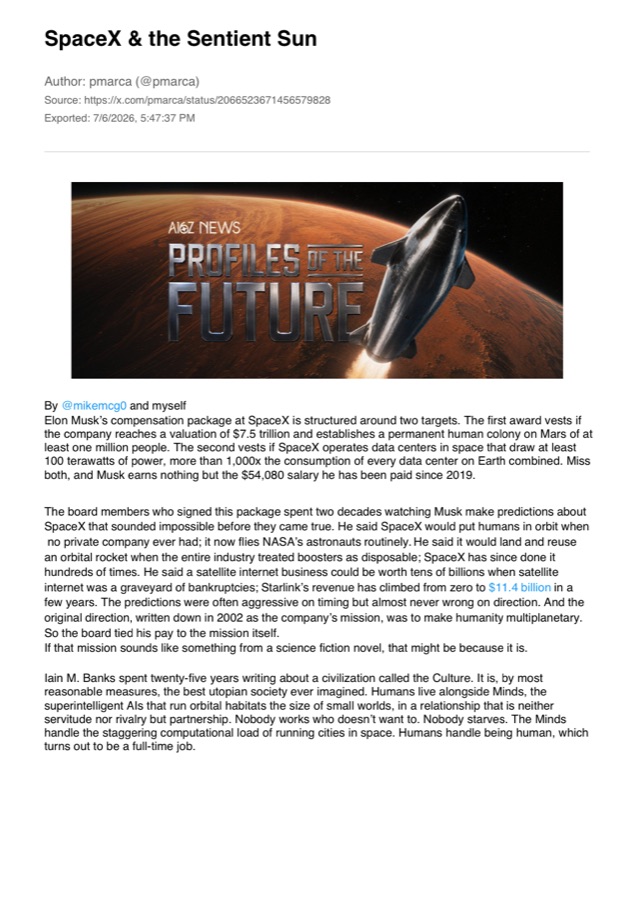
The structure carries over. Section headings keep their hierarchy, bulleted and numbered lists stay lists, images are embedded at a sensible size, and links remain clickable, set in X's blue. If the article quotes another post, the exporter renders that post as a small snapshot image, so it still reads as a post instead of dissolving into the paragraph around it.
The useful property of the PDF is that everything is inside the file. Our test export runs 22 pages and 2.9 MB because every image in the article is embedded. If the piece is edited or deleted tomorrow, you still have all of it. That makes it the format for archiving, printing, and sending to people who don't have an X account.
Save an X Article as Markdown
Same button, other option:
- Open the article, let it load, scroll once if it's long.
- Click Export, then Markdown.
- A
.mdfile named after the title downloads, almost immediately for most articles.
The export opens with a short metadata block, then the article in clean Markdown. This is the actual head of our test file:
# SpaceX & the Sentient Sun
**Author:** pmarca (@pmarca)
**Source:** https://x.com/pmarca/status/2066523671456579828
**Exported:** 2026-07-07T00:46:50.204Z
---

By [@mikemcg0](https://x.com/@mikemcg0) and myself
Elon Musk’s compensation package at SpaceX is structured around two targets. ...
# Working Back from the FutureFormatting survives the trip: the article's section headings become # and ## headings, quote blocks become > blockquotes, lists come through with their numbering rebuilt, inline links keep their targets, and emoji are preserved. Images sit exactly where they sat in the article, as standard Markdown image links pointing at X's media CDN. Video can't live in a text file, so each video contributes its thumbnail instead. Quoted posts are the one special case: they're captured as snapshot images and embedded directly into the file, so they display even with no connection.
One difference from the PDF is worth knowing: apart from those snapshots, the Markdown file references its images remotely rather than containing them. That keeps it tiny, our roughly 8,000-word export is 50 KB, and the images load as long as X keeps hosting them. But a link is not a copy. Archive with PDF; work with Markdown.
And working with it is the point. A Markdown export pastes into Obsidian or Notion with its outline intact, sits comfortably in a git repo, and is the format AI assistants read best. "Read this article and pull out every concrete claim about launch costs" goes a lot better when the model gets headings and lists instead of a wall of flattened text. If you save chat transcripts the same way, the chat exporter we covered earlier exists for the same reason.
PDF or Markdown?
If you're unsure, export both; each is two clicks. Otherwise: PDF is the archival copy, self-contained and readable by anyone. Markdown is the working copy, searchable, editable, and machine-readable. Decide by what you plan to do with the article after you've saved it.
How It Works, and What It Can't Do
Everything runs in your browser. The tweek reads the article out of the open page, converts the text block by block, and builds the file locally with two open-source libraries, jsPDF for the PDF and html2canvas for the quote-post snapshots, fetched from the cdnjs CDN. Those library downloads and X's own image CDN are the only network traffic involved. The article text is never sent anywhere.
The honest limitations:
- It exports articles, not timelines. Ordinary posts and threads don't get the button.
- It can only export what your browser can display. If you can't read the article, neither can the exporter.
- Video exports as a thumbnail, not a playable file.
- It depends on X's page structure, so a redesign can break extraction until the tweek is updated. When an export fails you get an alert, not a silently broken file.
Because it's a tweek, the defaults are also just defaults. Open it in Tweeks and describe a change: name the files by author and date, use letter paper instead of A4, skip images for a text-only archive. Edits are one-sentence requests, and the Tweeks vs. Tampermonkey post walks through how that works. X is also one of the most modified sites in the library, so there's a whole shelf of other tweeks for it; browse x.com.
If an article is worth rereading, it's worth a copy that doesn't depend on X keeping it up.